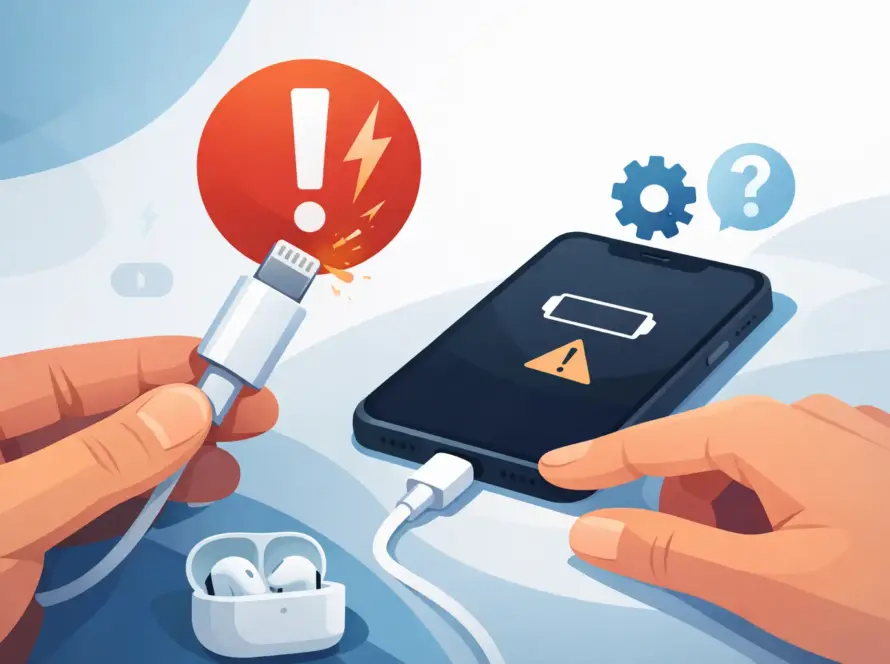
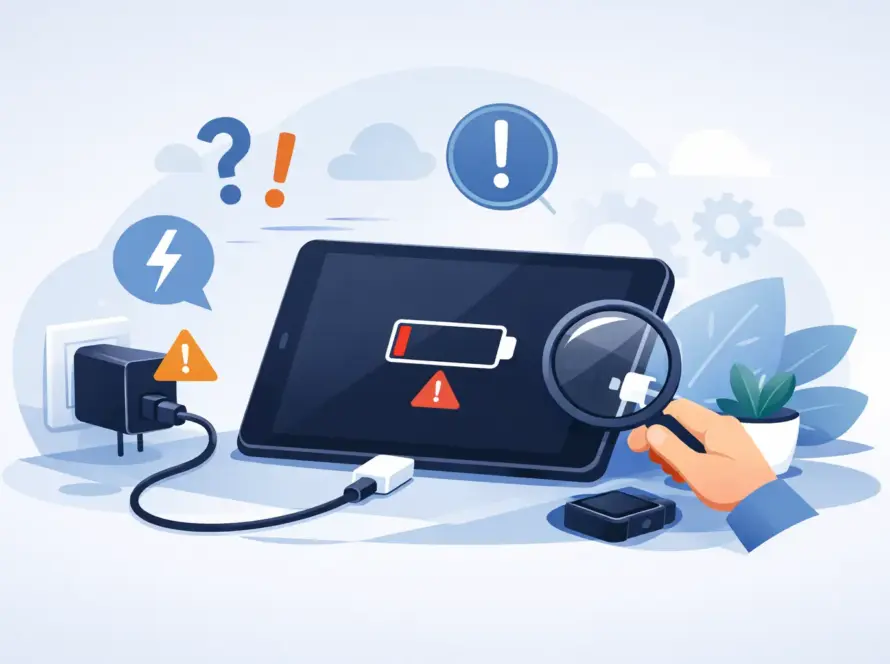
Your phone is on 3%, you have a train to catch, and the charging symbol refuses to appear. Before assuming the phone has reached the end of its life, work through a few simple checks. Knowing how to fix phone charging issues often comes down to finding whether the problem is with the plug, cable, charging port, software or the battery itself.
Start with the easiest fixes first. They cost nothing, take only a few minutes, and can save you from replacing an accessory or booking a repair you do not need.
How to fix phone charging issues step by step
Check the plug, cable and power source
A worn charging cable is one of the most common reasons a phone charges slowly, connects only at a certain angle or does not charge at all. Cables are bent, pulled from sockets, packed into bags and used every day, so internal damage can happen even when the outside looks fine.
Try a different cable first, ideally one you know works properly with another device. Then test a different wall plug and a different mains socket. If you normally charge through a laptop, car charger or power bank, switch to a wall charger for this test. These sources can provide less power, especially when the laptop is low on battery or the car engine is not running.
Make sure the charger is suitable for your phone. A low-power plug may charge modern phones very slowly, while a poor-quality or damaged adapter can cause unreliable charging. Using a compatible, good-quality USB-C, Lightning or other appropriate cable is a small upgrade that makes a noticeable difference to daily charging.
If the phone charges normally with another cable or plug, the phone is likely fine. Replace the faulty accessory rather than continuing to use it. Stop using any charger that feels unusually hot, has exposed wires, a bent connector or a cracked plug casing.
Look inside the charging port
Pocket fluff is a surprisingly frequent culprit. Dust, lint and debris can build up at the bottom of a charging port and prevent the connector from sitting fully in place. The cable may appear plugged in, but it cannot make a secure connection.
Turn the phone off and inspect the port under a bright light. If you can see debris, carefully remove it with a dry, non-metal tool, such as a plastic pick or a soft brush made for electronics. Work gently and do not force anything into the port. Metal pins inside are delicate, and scratching or bending them can turn a cleaning job into a repair.
Do not pour liquid, spray cleaner or blast compressed air directly into the port. Moisture and loose debris can be pushed further inside. If the port looks green, corroded, burnt or visibly damaged, stop testing cables and arrange a professional inspection.
Restart the phone and check for software issues
Charging is physical, but the phone’s software controls what appears on screen and how it manages power. A temporary software fault can mean the battery icon does not update correctly, fast charging fails or the phone drains power almost as quickly as it receives it.
Restart the phone, then connect it to a known working charger and leave it for 15 to 20 minutes. If the battery was completely flat, the screen may stay black for a short time before the charging symbol appears. Avoid repeatedly pressing the power button during this period, as that uses the little power the phone is trying to recover.
Once it turns on, check for a system update. You should also close demanding apps, particularly games, navigation, video streaming and hotspot use, then see whether charging improves. If the phone becomes very warm while charging, remove the case and place it on a hard, cool surface. Never cover a charging phone with bedding or clothing.
Check for moisture warnings
Many newer phones can detect moisture in the charging port. If you see a liquid or moisture warning, unplug the cable straight away. Charging through a wet port risks corrosion and, in some cases, damage to the charging circuitry.
Leave the phone in a dry, ventilated area with the port facing down. Give it time to dry naturally before trying again. Do not use a hairdryer, radiator or microwave, and do not put the phone in rice. Heat can damage internal parts, while rice dust can create another blockage in the port.
Wireless charging may be an option while the port dries, but only if the phone and wireless charger are both dry and the phone is designed for it. It is a temporary workaround, not a reason to ignore repeated moisture warnings.
When slow charging is not a fault
Not every slow charge points to a broken phone. Charging speed depends on the charger output, cable quality, battery temperature and what the phone is doing at the time. A phone running maps in the car, making video calls or downloading updates may gain battery very slowly because it is using substantial power at the same time.
Fast charging also works only when the phone, cable and plug all support the correct charging standard. Pairing a fast-charge phone with an older basic plug will still work, but it will not deliver the advertised speed. The same applies to wireless charging: it is convenient for a desk or bedside table, but it is usually slower and can be less efficient than a wired connection.
For a fair test, use a suitable wall charger, leave the phone unlocked only if necessary, and avoid heavy apps for half an hour. If the percentage rises normally, the issue may be your usual charging setup rather than the handset.
Signs the charging port, battery or phone needs repair
A cable that repeatedly falls out, needs to be held at an angle or no longer clicks into place can indicate compacted debris or a worn charging port. If several known working cables behave the same way, the problem is unlikely to be the cable.
Battery health is another consideration, especially on an older phone. Batteries naturally hold less charge over time. You may notice that the percentage drops quickly, the phone switches off before reaching 0%, or it takes a charge but cannot keep it. A replacement battery can be more cost-effective than replacing a phone that otherwise still does everything you need.
Book a repair assessment if you notice any of the following:
- The phone will not charge with multiple known working cables and plugs.
- Charging starts and stops when the cable is moved.
- The charging port is loose, burnt, corroded or damaged.
- The phone overheats, smells unusual or shows a swollen screen or back cover.
- The phone was dropped or exposed to water shortly before the issue began.
A swollen battery needs urgent attention. Do not press the screen or back cover down, puncture the device, or continue charging it. Turn the phone off where possible and have it checked by a qualified technician.
Choose the right fix, not just the quickest one
It is tempting to buy the cheapest cable available when your phone will not charge, but a poor replacement can create more frustration. The better choice depends on how you use your phone. A commuter may need a compact power bank and car charger, while a home worker may prefer a reliable fast wall charger and spare cable at the desk.
For a damaged port or tired battery, accessories alone will not solve the issue. That is where a repair diagnosis is useful: it identifies the failed part before you spend money on cables, chargers or a replacement device. InstaTech can help with practical charging accessories and phone repair support, so you can deal with the immediate problem in one place.
A working charger should feel boring – plug in, see the battery symbol, get on with your day. Test the simple causes carefully, use compatible accessories, and act early if heat, damage or a loose port is involved.