A laptop that takes five minutes to open a browser, freezes during a video call or sounds like it is working overtime can quickly disrupt your day. Knowing how to troubleshoot slow laptop performance helps you deal with the simple causes first, avoid spending money unnecessarily and recognise when a proper repair is the sensible next step.
Start by noticing when the slowdown happens. Is it slow from the moment you switch it on, only when charging, while opening certain apps, or after it has been running for an hour? That detail points you towards the cause. A full storage drive needs a different fix from an overheating fan or a failing charger.
How to troubleshoot slow laptop performance at home
Before changing settings or deleting files, save any open work and restart the laptop. This sounds basic, but it clears temporary processes and can fix a one-off slowdown caused by an app running badly in the background. If the laptop returns to normal after restarting but becomes slow again later, you have useful evidence that a program, update or heat issue may be involved.
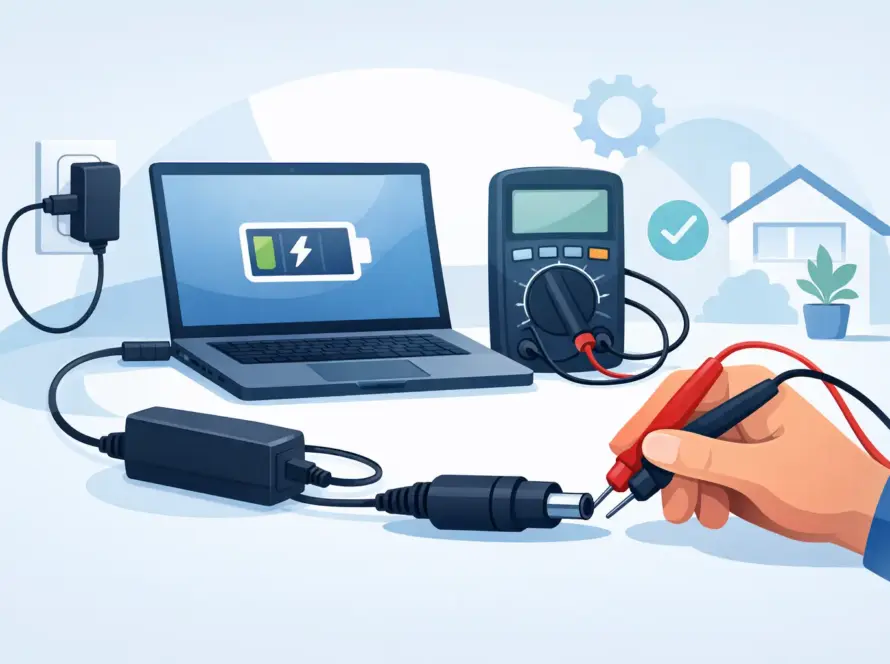
Keep the charger connected if your battery is low. Many laptops reduce performance in battery-saving mode, particularly older machines with worn batteries. If the laptop is only slow when unplugged, check its power mode in the battery settings and test it with a known-good compatible charger. A loose, damaged or underpowered laptop charger can cause charging problems and reduced performance, especially during demanding tasks.
Check what is using your laptop’s power
On a Windows laptop, press Ctrl, Shift and Esc to open Task Manager. Look at the CPU, Memory and Disk columns. On a Mac, use Activity Monitor. You do not need to understand every process – look for an app that stays at a very high percentage while your laptop is struggling.
A web browser is a common culprit. Too many tabs, video streams and browser extensions can consume memory quickly, even on a reasonably modern laptop. Close tabs you do not need, remove extensions you no longer use and try opening the same page in a fresh browser window. If one specific app is repeatedly using most of the processor or memory, update it, reinstall it or check whether a lighter alternative is available.
Startup apps also matter. Messaging tools, cloud storage, game launchers and update services can all start together when you sign in. Disable non-essential startup items through Task Manager on Windows or Login Items on a Mac. Leave security software, touchpad tools and hardware-related services alone unless you are sure what they do.
Free up storage space
A nearly full drive can make a laptop feel painfully slow. The system needs spare space for updates, temporary files and everyday tasks. As a practical rule, aim to keep at least 15 to 20 per cent of the main drive free where possible.
Check your storage settings for large files, old downloads, duplicate photos and apps you no longer use. Empty the recycle bin or bin afterwards. Move large videos, coursework archives or photo libraries to cloud storage or an external drive if you need to keep them. Do not delete folders simply because their names look technical – removing system files can create a bigger problem than the original slowdown.
If storage fills up again almost immediately, look for the reason. Automatic phone backups, game files, video editing projects and repeated downloads are frequent causes. A laptop with a small internal drive can still work well, but it needs more regular housekeeping.
Update the operating system and key apps
Updates are not just about new features. They can fix bugs, improve battery use and resolve compatibility issues that make software unstable or slow. Install available Windows or macOS updates, then restart when prompted. Update your browser, office apps and video-call software as well, particularly if the slowdown happens in one of those programs.
There is a trade-off here. Major updates can briefly make an older laptop feel slower while the system finishes background tasks such as indexing files. Give it a little time after an update, keep the laptop connected to power and restart it once more before deciding there is a fault.
If a laptop became slow immediately after a particular update, note the date and the symptoms. It may be a software conflict rather than failing hardware. A technician can use that information to investigate without guessing.
Check for heat, dust and airflow problems
If the base of your laptop is hot, the fan is constantly loud or performance drops after 20 to 30 minutes, overheating is likely part of the problem. Laptops slow themselves down to protect internal components when temperatures rise. That is why a machine can feel fine at first, then crawl during work, streaming or gaming.
Use the laptop on a hard, flat surface. Sofas, beds and laps can block vents underneath. Check that nothing is covering the side or rear vents, and avoid using it in direct sunlight or a very warm room. A simple stand can improve airflow, but it will not remove dust already built up inside.
Dust in the fan and heatsink is a common issue, particularly on laptops used every day or carried in bags. Do not force a vacuum nozzle into the vents or take the device apart unless you are confident with laptop repairs. Internal cleaning often requires careful access, and one damaged connector can turn a straightforward service into a more expensive repair.
Run a security check
Malware is not the only reason a laptop slows down, but it is worth ruling out. Run a full scan with the security software already installed on your device, and remove anything it identifies. Be cautious with pop-ups that claim your laptop has hundreds of errors and ask for payment to fix them. These are often scare tactics, not useful tools.
Avoid installing several competing antivirus programs. They can clash with each other and add more background activity. One reputable, up-to-date security solution is normally enough for everyday use.
Consider the limits of older hardware
A clean, updated laptop can still be slow because the hardware no longer suits the work you need it to do. This is especially common with entry-level models that have limited memory, older processors or traditional hard drives rather than solid-state drives.
Signs of a hardware limit include long startup times every day, frequent freezing when using two or three standard apps, or disk activity staying high even after you have closed programs. A solid-state drive upgrade can make a dramatic difference on compatible older laptops. Extra memory can also help if the laptop regularly runs out while you are browsing, studying or working with documents.
However, upgrades are not always the best value. Some slim laptops have memory soldered to the motherboard, while a very old device may not support the latest software comfortably even with a new drive. A repair assessment can help you compare the cost of an upgrade with replacing the machine. The right answer depends on the laptop’s age, condition and what you need it to do.
When slow performance needs professional help
Book a repair check if the laptop is slow alongside crashes, blue-screen errors, random restarts, missing files, a swollen battery, a burning smell or unusual clicking from the drive. These can indicate a hardware fault that cleaning up apps will not solve.
It is also worth getting help if you have tried the basic checks and the problem remains. A technician can test the battery, charger, cooling system, storage drive and memory, then explain the practical options clearly. At InstaTech, laptop repair support is designed for exactly this situation: a straightforward diagnosis, sensible repair advice and compatible accessories when a charger or cable is part of the issue.
Before handing over your laptop, back up important files if you can and make a note of your passwords only if a repair provider specifically needs them. Describe when the slowdown started, what you have already tried and whether it happens on battery, mains power or both. Those small details can save time and help get you back to work, study or streaming sooner.
A slow laptop does not automatically mean it is finished. Start with storage, startup apps, updates and airflow, then let the symptoms guide your next move. If the issue persists, a timely check can prevent a minor fault from becoming a bigger interruption.